> ## Documentation Index
> Fetch the complete documentation index at: https://docs.246club.xyz/llms.txt
> Use this file to discover all available pages before exploring further.
# Cross-Protocol Arbitrage UI Guide
> How to open and manage a cross-protocol arbitrage using the 246 Club UI.
Screenshots in this guide reflect a previous version of the UI. We’ll update them soon. The core flows and concepts remain the same.
In 246Club, each market is defined by a **single borrowable asset** and **multiple eligible collaterals**. However, since borrowing positions are opened per **pair** (one collateral + one borrow asset), the UI is structured around these **pair-specific combinations**.
Each pair has its own risk parameters—such as **Loan-to-Value (LTV)** and **Liquidation Threshold (LT)**—as well as a unique **interest rate model**. [Learn more about pair-specific parameters](docs/architecture/market-structure#risk-management)
We hope the UI feels straightforward, but if there's anything unclear, the table of contents can guide you to the exact section you need.
> #### Table of contents
>
> 1. [Collateral Section](#collateral-section)
> 1. [Collateral Column](#collateral-column)
> 2. [( Collateral ) Balance Column](#collateral-balance-column)
> 3. [( Collateral ) APY Column](#collateral-apy-column)
> 2. [Borrow Section](#borrow-section)
> 1. [Borrow / APY / Liquidity / LTV Column](#borrow-apy-liquidity-ltv)
> 2. [Net APY Column](#net-apy-column)
> 3. [Borrow Modal](#borrow-modal)
> 4. [Borrow Modal - Leverage](#borrow-modal-leverage)
> 5. [Managing My Position](#managing-my-position)
> 1. [Supply ( Collateral ) Modal](#supply-collateral-modal)
> 2. [Withdraw ( Collateral ) Modal](#withdraw-collateral-modal)
> 3. [Borrow Modal](#borrow-modal-1)
> 4. [Repay Modal](#repay-modal)
> 5. [Repay Modal - Flash Repay](#repay-modal-flash-repay)
## Borrow Dashboard
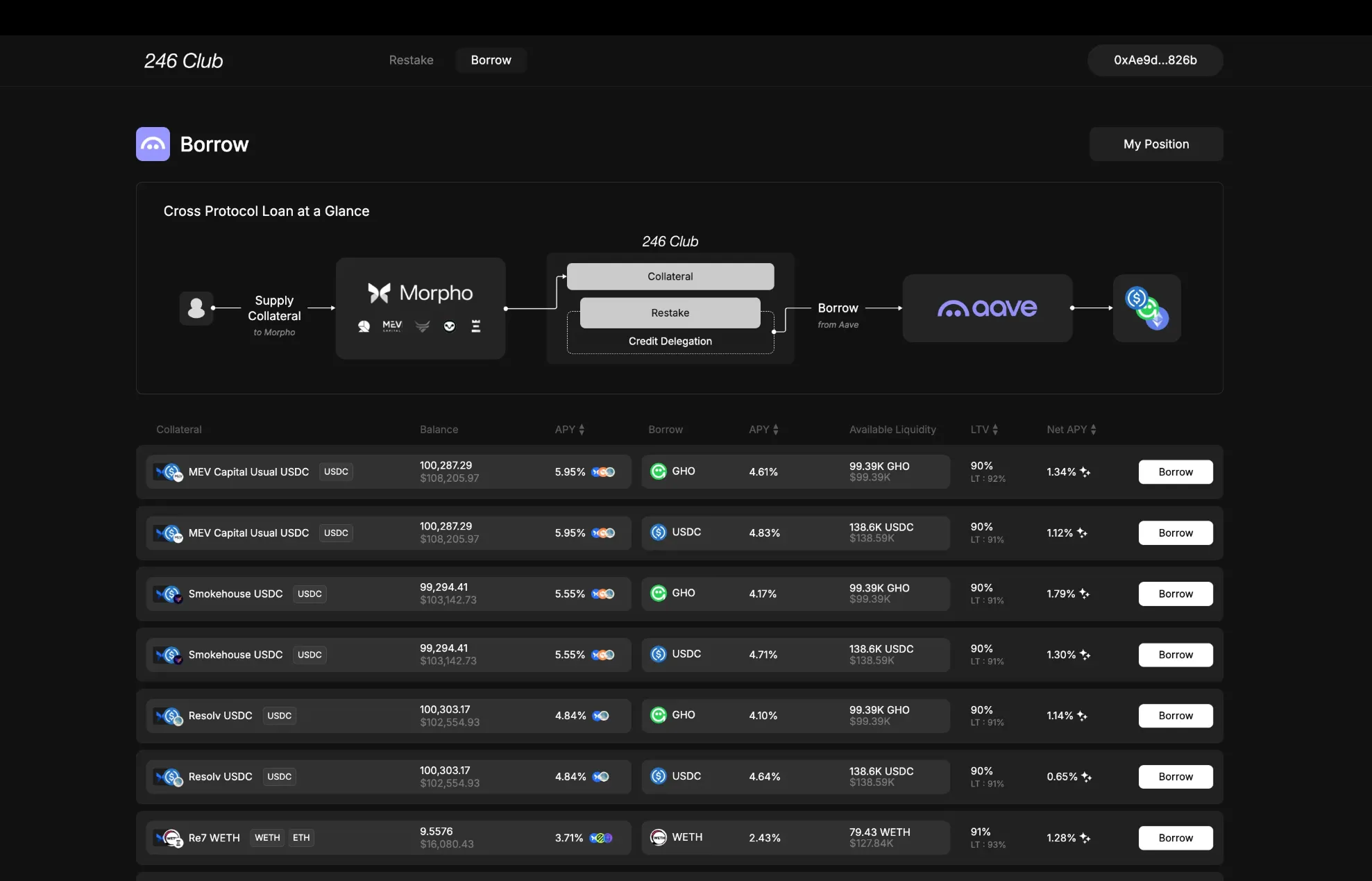 The Borrow Table lists all available pairs you can borrow from.
Each row represents a **unique pair**, with relevant details about the collateral side and borrow side.
## Collateral Section
#### Collateral Column
The Borrow Table lists all available pairs you can borrow from.
Each row represents a **unique pair**, with relevant details about the collateral side and borrow side.
## Collateral Section
#### Collateral Column
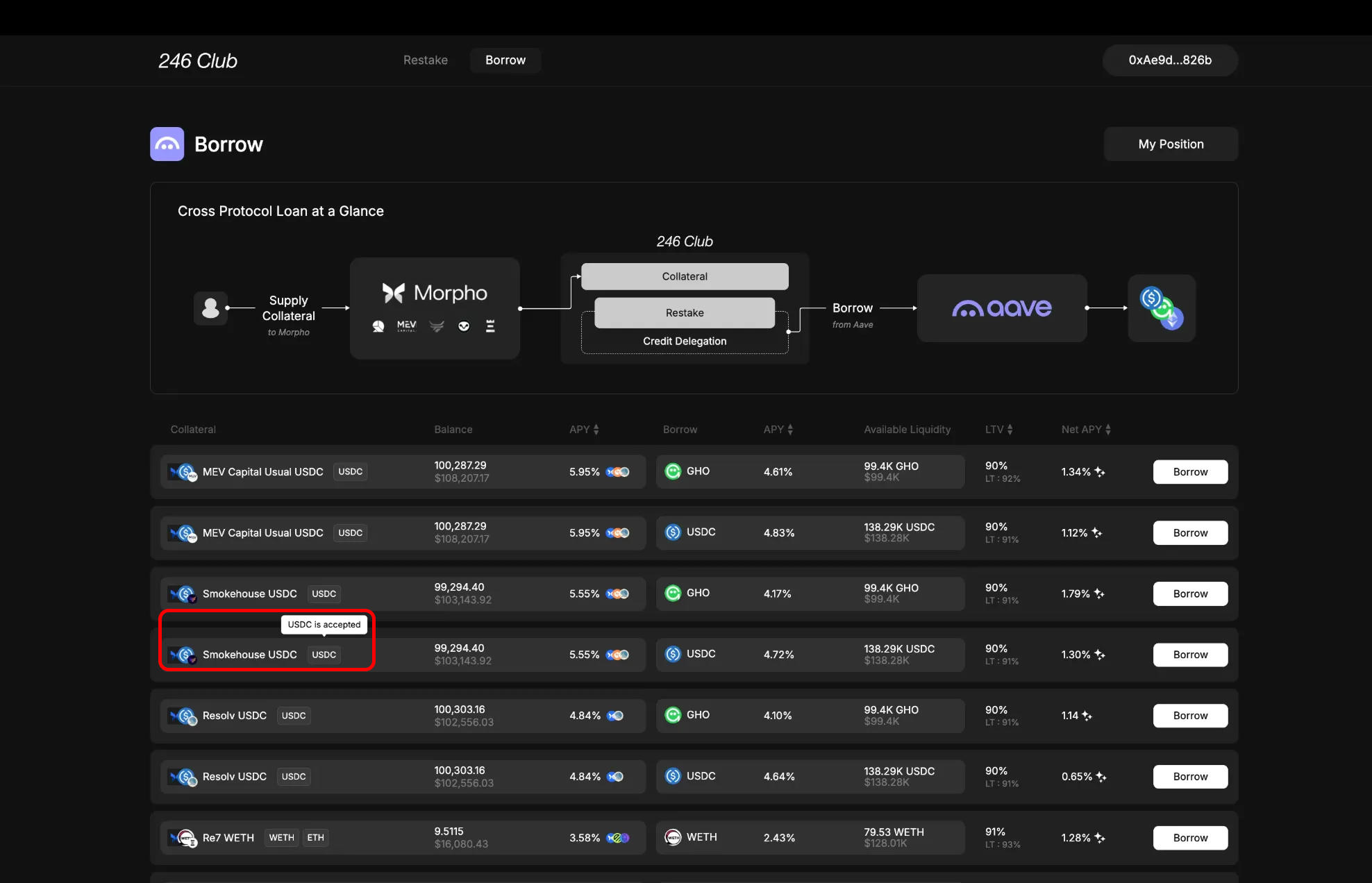 Each row begins with the **collateral** you can use for borrowing.
You can see
* **Vault Position** (e.g., a Morpho lending position like Smokehouse USDC)
* and the **underlying asset** (e.g., USDC or ETH), which you can zap into a vault position directly from the UI.
If you don’t already hold the vault position, the protocol will:
1. Deposit your underlying asset into the respective Morpho vault.
2. Mint the vault receipt token.
3. Use that receipt as collateral—automatically.
This means even without a pre-existing Morpho position, you can open a position within our UI.
> End result is the same: whether using a vault you already hold or zapping in from an underlying asset, the position becomes your collateral.
#### ( Collateral ) Balance Column
Each row begins with the **collateral** you can use for borrowing.
You can see
* **Vault Position** (e.g., a Morpho lending position like Smokehouse USDC)
* and the **underlying asset** (e.g., USDC or ETH), which you can zap into a vault position directly from the UI.
If you don’t already hold the vault position, the protocol will:
1. Deposit your underlying asset into the respective Morpho vault.
2. Mint the vault receipt token.
3. Use that receipt as collateral—automatically.
This means even without a pre-existing Morpho position, you can open a position within our UI.
> End result is the same: whether using a vault you already hold or zapping in from an underlying asset, the position becomes your collateral.
#### ( Collateral ) Balance Column
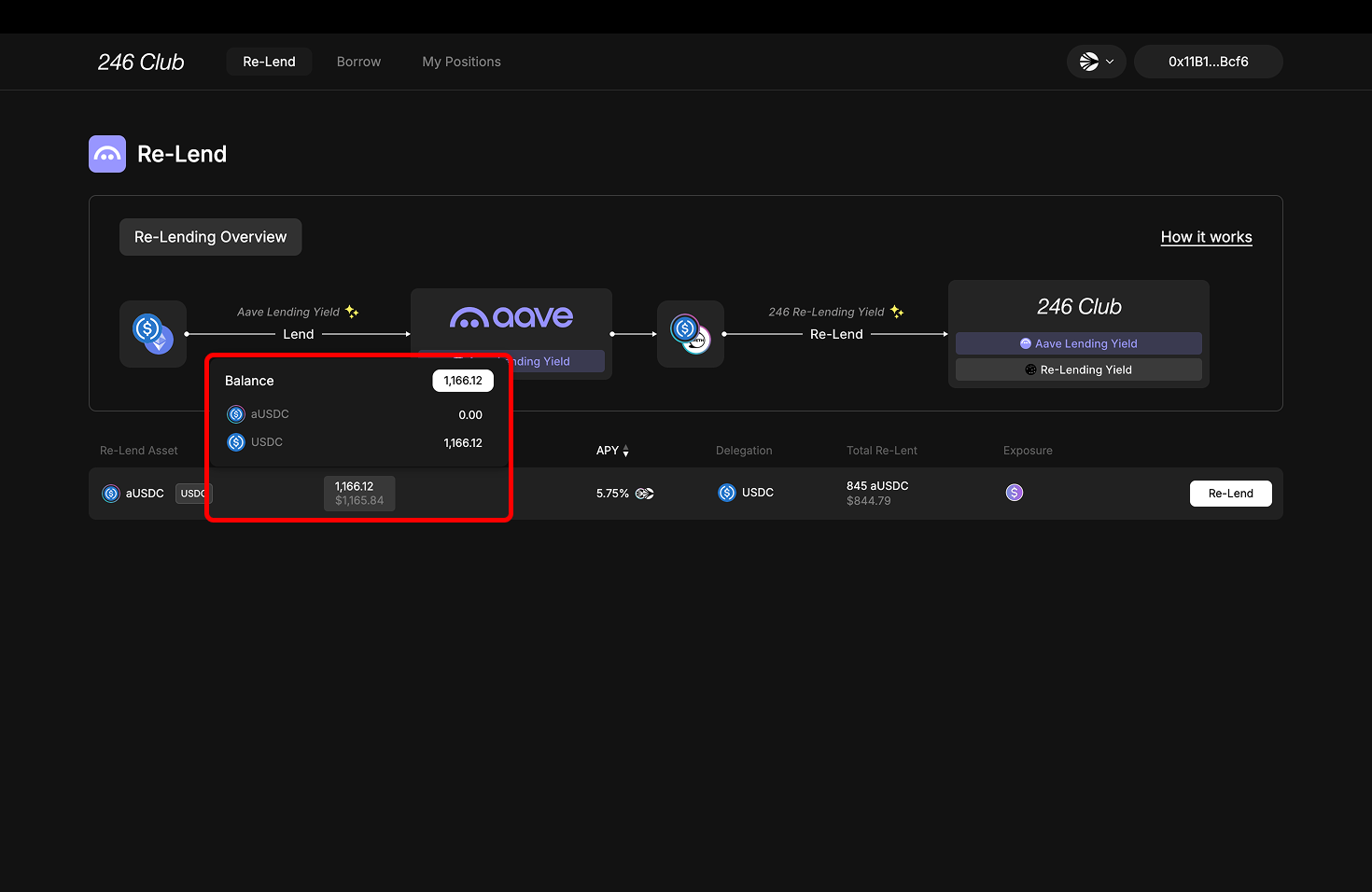 Hovering over the **Balance** column shows:
* Your balance of the **vault receipt token** (e.g., Smokehouse USDC)
* Your balance of the **underlying asset** (e.g., USDC)
* **Total combined amount** available for collateral use
#### ( Collateral ) APY Column
Hovering over the **Balance** column shows:
* Your balance of the **vault receipt token** (e.g., Smokehouse USDC)
* Your balance of the **underlying asset** (e.g., USDC)
* **Total combined amount** available for collateral use
#### ( Collateral ) APY Column
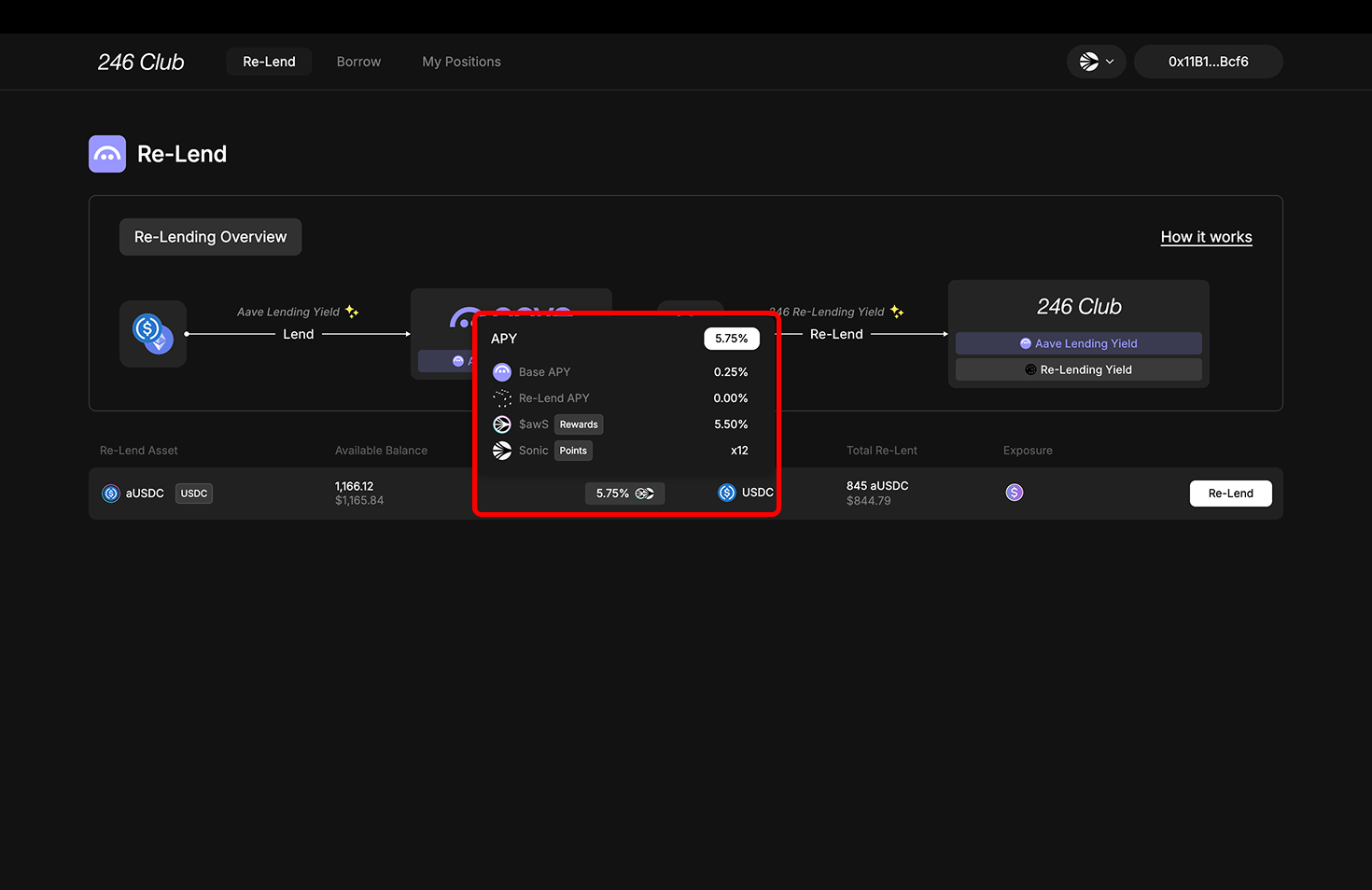 Hovering over the **APY** column reveals a full breakdown of returns from the collateral :
* **Native APY**: Base yield from the Vault used as collateral ( e.g. Lending yield from Morpho )
* **Reward APY**: Additional rewards (e.g., \$MORPHO incentives)
* **Points**: Points earned from the vault (e.g., Resolv points)
* **Combined APY**: Total of all the above
## Borrow Section
#### Borrow / APY / Liquidity / LTV
Hovering over the **APY** column reveals a full breakdown of returns from the collateral :
* **Native APY**: Base yield from the Vault used as collateral ( e.g. Lending yield from Morpho )
* **Reward APY**: Additional rewards (e.g., \$MORPHO incentives)
* **Points**: Points earned from the vault (e.g., Resolv points)
* **Combined APY**: Total of all the above
## Borrow Section
#### Borrow / APY / Liquidity / LTV
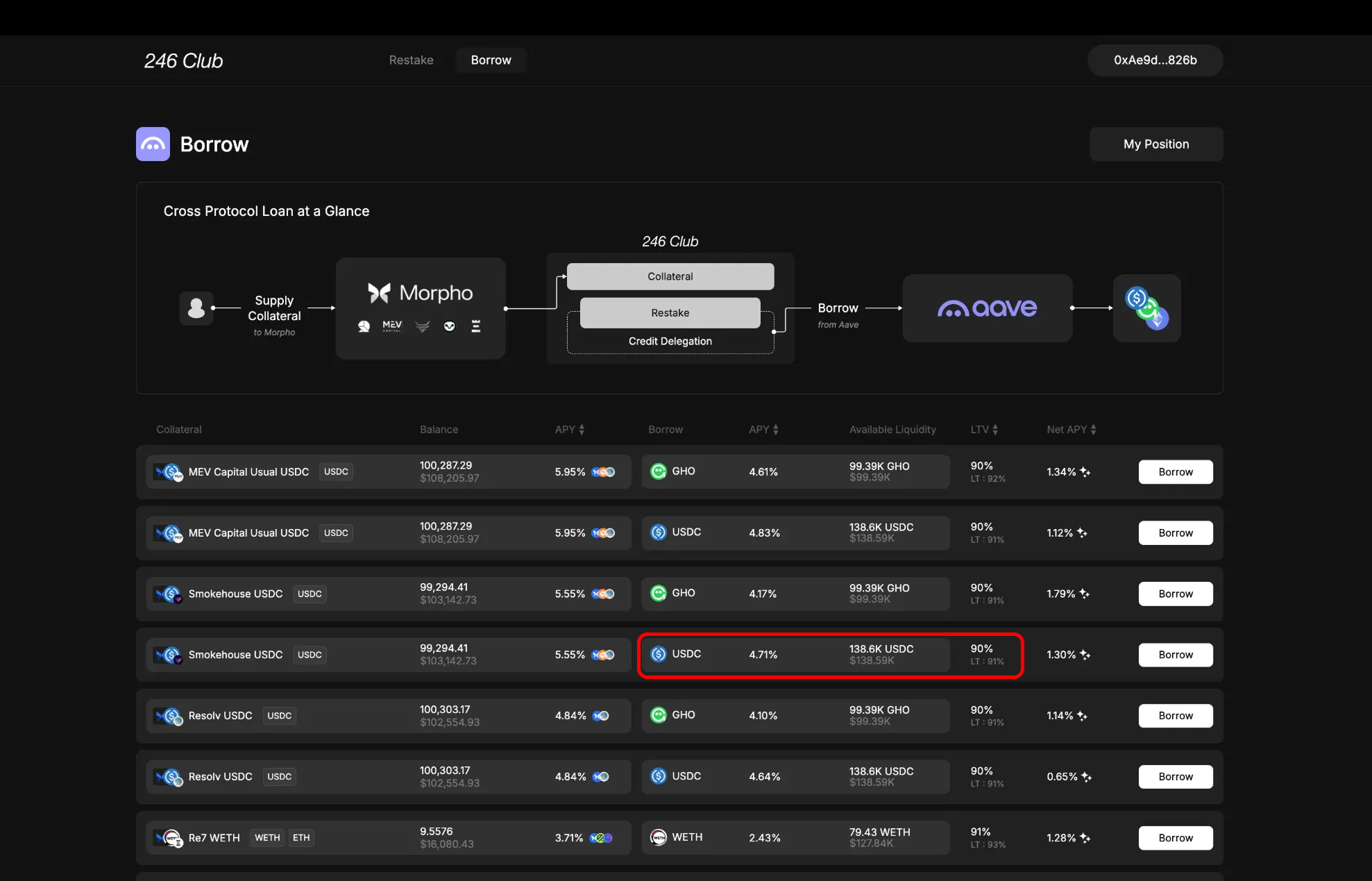 * **Borrow Column**: Asset you can borrow
* **APY Column**: The interest rate you’ll pay. This includes Aave’s base rate and an additional 246Club-specific rate. [More on the rate model](docs/architecture/interest-rate-model)
* **Available Liquidity**: Maximum borrowable amount left for this pair
* **LTV**: Maximum borrow ratio you can take. Below that, the **Liquidation Threshold (LT)** is displayed. [Learn how to manage LTV and LT](docs/cross-protocol-arbitrage/managing-arbitrage-position)
#### Net APY Column
* **Borrow Column**: Asset you can borrow
* **APY Column**: The interest rate you’ll pay. This includes Aave’s base rate and an additional 246Club-specific rate. [More on the rate model](docs/architecture/interest-rate-model)
* **Available Liquidity**: Maximum borrowable amount left for this pair
* **LTV**: Maximum borrow ratio you can take. Below that, the **Liquidation Threshold (LT)** is displayed. [Learn how to manage LTV and LT](docs/cross-protocol-arbitrage/managing-arbitrage-position)
#### Net APY Column
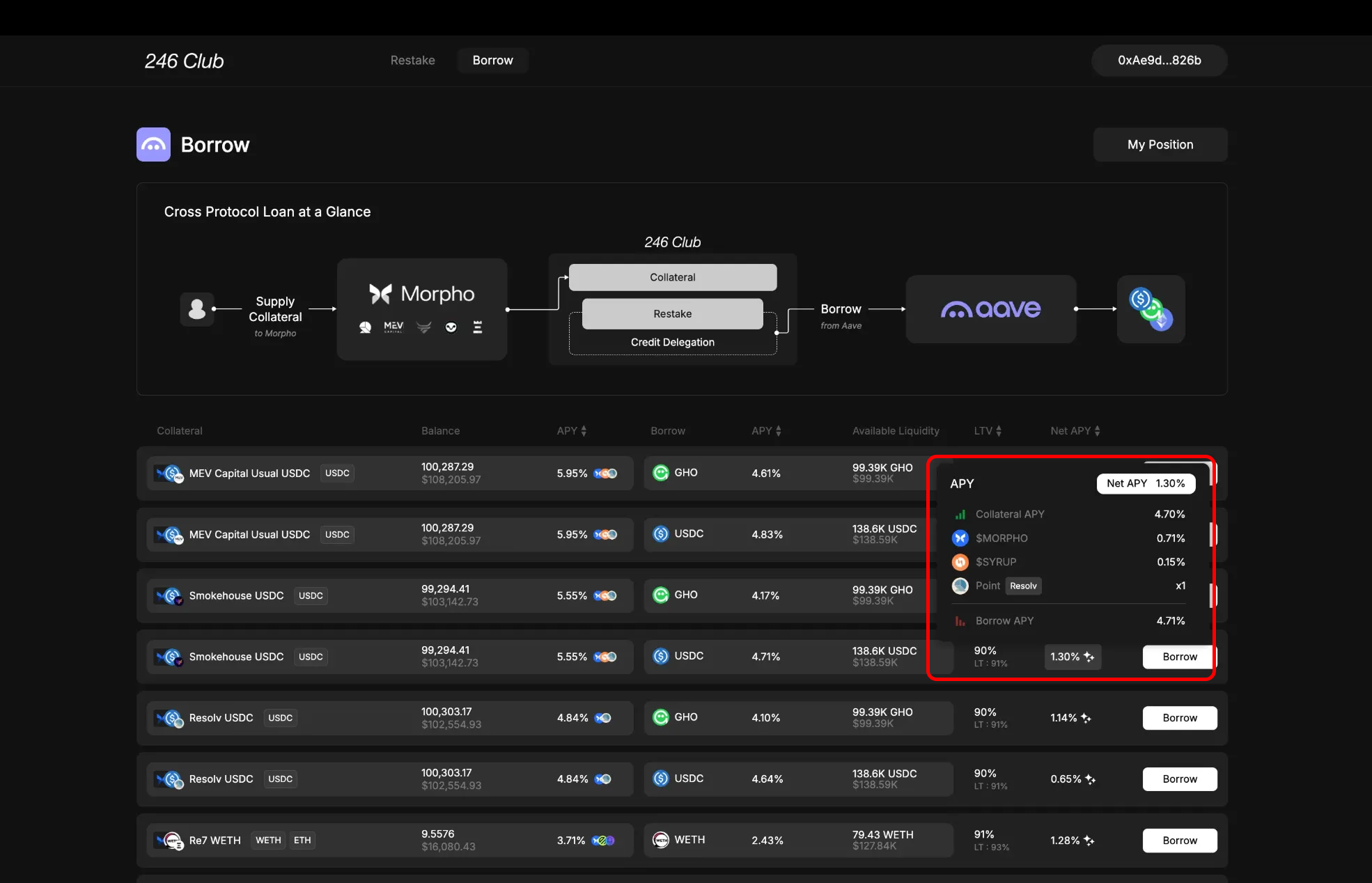 This column shows the **net return** on your loan position:
**Net APY** = (Collateral APY) – (Borrow APY × LTV)
This accounts for how much you're earning from your collateral minus how much you’re paying in borrow interest—weighted by the maximum borrowable amount.
Hovering over the Net **APY** column reveals a breakdown of:
* **Collateral APY**: The base supply rate you earn from supplying the asset to Morpho vaults.
* **Reward APY**: The additional reward you earn from Morpho by supplying to that vault(e.g., \$MORPHO)
* **Points**: The points multiplier you get from the Vault by supplying(e.g., Resolv points)
* **Borrow APY**: The apy displayed from APY column of delegation asset.
* **Net APY**
## Borrow Modal
Clicking the Borrow button opens a modal with three sections: Collateral, Borrow, and Summary.
This column shows the **net return** on your loan position:
**Net APY** = (Collateral APY) – (Borrow APY × LTV)
This accounts for how much you're earning from your collateral minus how much you’re paying in borrow interest—weighted by the maximum borrowable amount.
Hovering over the Net **APY** column reveals a breakdown of:
* **Collateral APY**: The base supply rate you earn from supplying the asset to Morpho vaults.
* **Reward APY**: The additional reward you earn from Morpho by supplying to that vault(e.g., \$MORPHO)
* **Points**: The points multiplier you get from the Vault by supplying(e.g., Resolv points)
* **Borrow APY**: The apy displayed from APY column of delegation asset.
* **Net APY**
## Borrow Modal
Clicking the Borrow button opens a modal with three sections: Collateral, Borrow, and Summary.
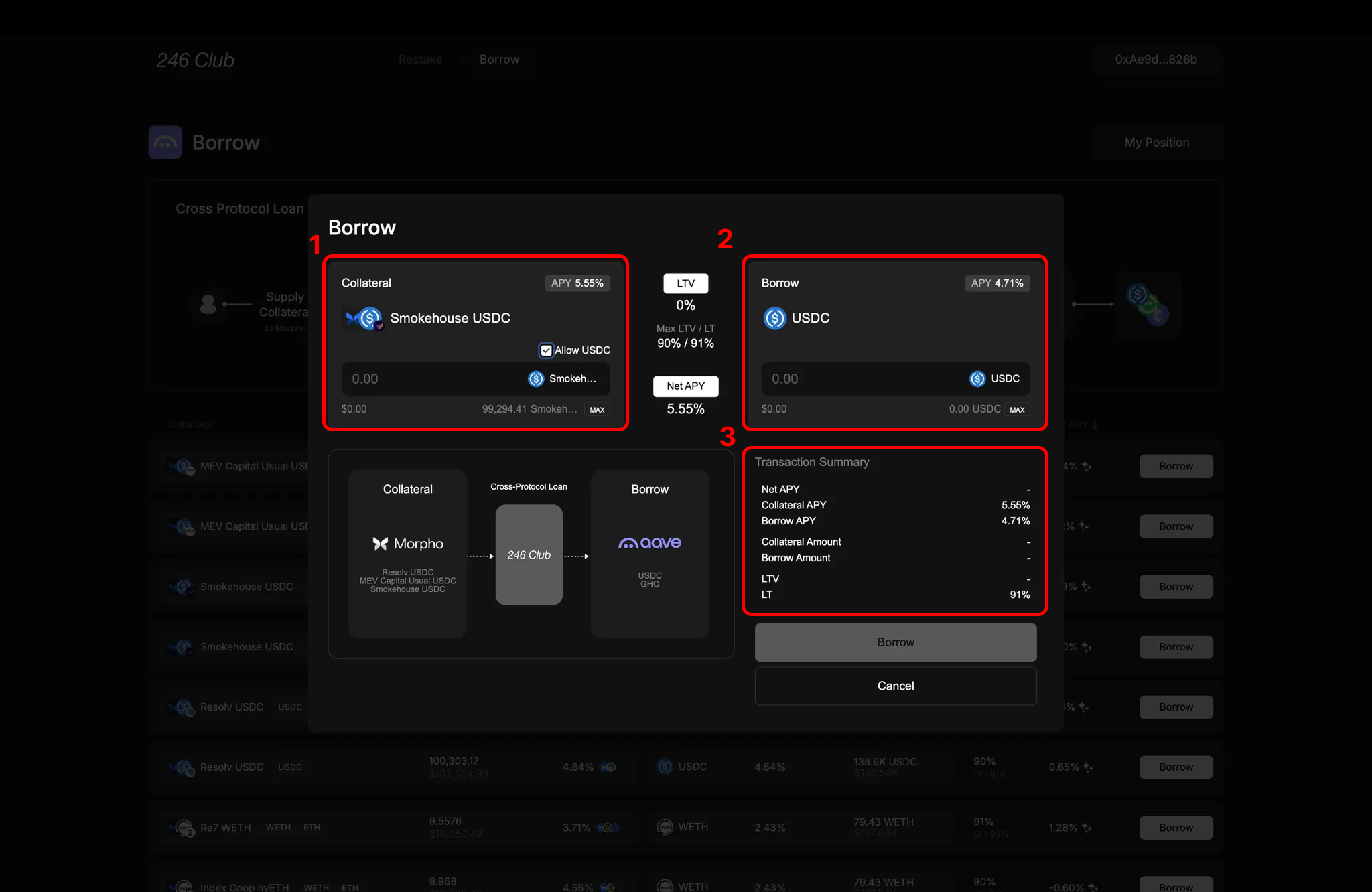 #### 1. Collateral Box
* Shows the selected **collateral** and allows you to input how much to deposit.
* You can enable **"Allow USDC"** to use USDC (or other underlying assets) directly to zap into the vault.
* Clicking **Max** fills in your maximum depositable amount, depending on whether the underlying asset is enabled.
#### 2. Borrow Section
* Shows the selected **borrow asset** and allows you to input how much to borrow.
* You can borrow up to:
**Collateral Value × Max LTV**
* Clicking **Max** auto-fills the maximum borrowable amount.
#### 3. Summary Section
Displays a real-time summary based on the input amount of collateral and borrow :
* Total **Collateral Supplied**
* Total **Amount Borrowed**
* Current **LTV**
* Final **Net APY**
## Borrow Modal - Leverage
Leverage mode automates the borrowing and collateral depositing process based on your chosen leverage ratio.
The modal has three sections: **Position**, **Leverage**, and **Summary**.
#### 1. Collateral Box
* Shows the selected **collateral** and allows you to input how much to deposit.
* You can enable **"Allow USDC"** to use USDC (or other underlying assets) directly to zap into the vault.
* Clicking **Max** fills in your maximum depositable amount, depending on whether the underlying asset is enabled.
#### 2. Borrow Section
* Shows the selected **borrow asset** and allows you to input how much to borrow.
* You can borrow up to:
**Collateral Value × Max LTV**
* Clicking **Max** auto-fills the maximum borrowable amount.
#### 3. Summary Section
Displays a real-time summary based on the input amount of collateral and borrow :
* Total **Collateral Supplied**
* Total **Amount Borrowed**
* Current **LTV**
* Final **Net APY**
## Borrow Modal - Leverage
Leverage mode automates the borrowing and collateral depositing process based on your chosen leverage ratio.
The modal has three sections: **Position**, **Leverage**, and **Summary**.
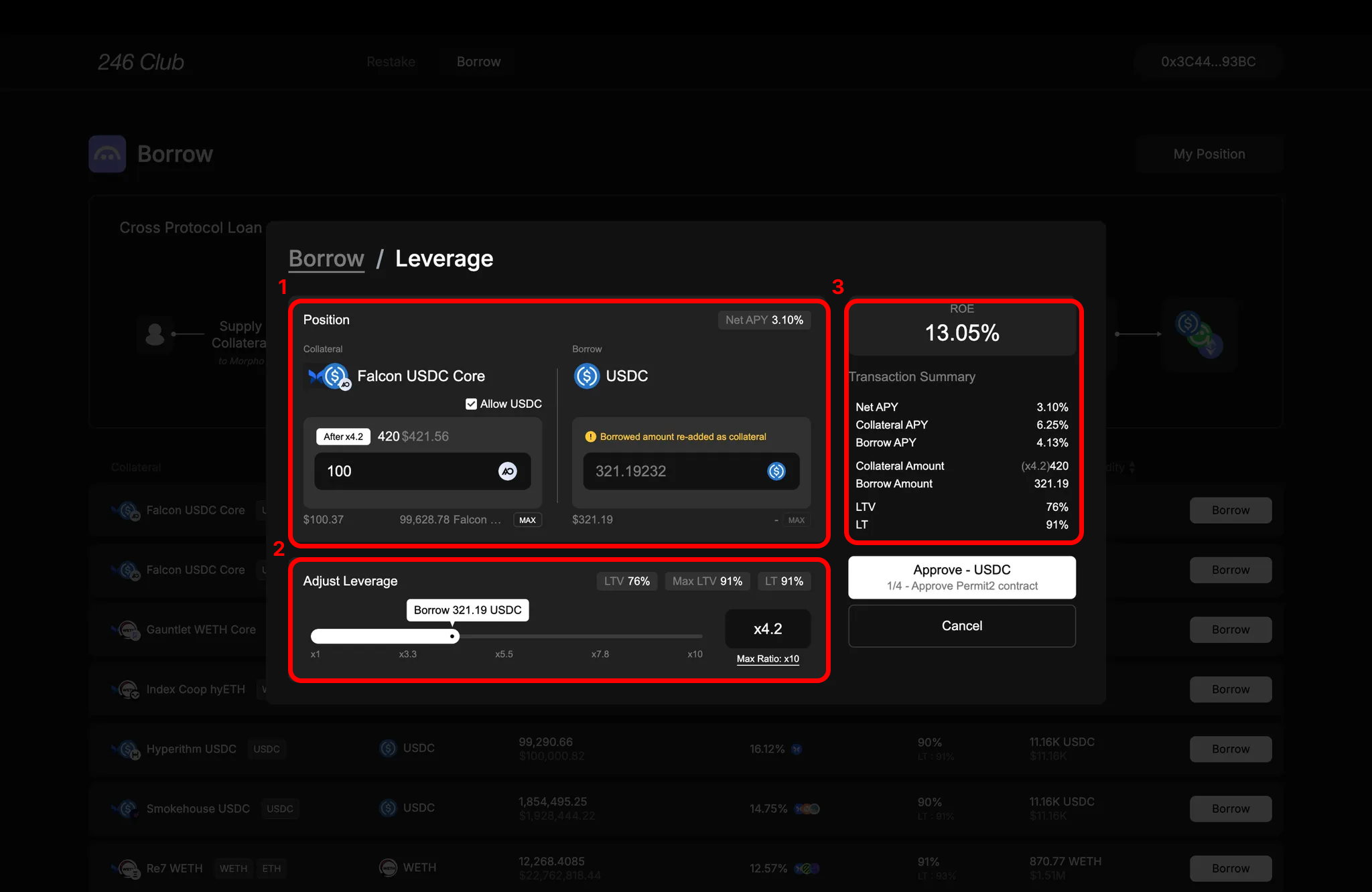 #### 1. Position Box
* Shows the selected **collateral** and **borrow asset pair**.
* You can enable **"Allow USDC"** to use USDC (or the underlying asset) to zap directly into the vault.
* Clicking **Max** fills in your maximum depositable amount.
> In leverage mode, you only input how much collateral (or underlying asset) you want to deposit.
>
> The borrow amount is calculated automatically based on your selected leverage ratio.
For example, if you deposit $100 and set leverage to 10×, the system borrows $900 and adds it to your collateral to reach a \$1,000 position.
* **Net APY** is shown at the top-right of the box, reflecting your yield without leverage.
#### 2. Leverage Box
* Set your desired **Leverage Ratio** using the slider.
* The maximum ratio is determined by the selected pair’s **Max LTV**, calculated as:
`1 / (1 - LTV)`
For example, with 90% LTV: `1 / (1 - 0.9) = 10× max leverage`.
* As you increase the ratio, the **LTV** of the position rises.
The current LTV is shown in the top-right of the box.
> You cannot exceed Max LTV, but you should still size your leverage based on your own risk preference.
#### 3. Summary Section
* **ROE** is shown first — this is your Net APY multiplied by the Leverage Ratio.
* Real-time updates reflect changes to inputs and leverage settings:
* **Net APY**
* Total **Collateral Supplied** (including borrowed and re-added amounts)
* Total **Amount Borrowed**
* Current **LTV** after leverage is applied
## My Position
After a successful transaction, you're redirected to the **My Position** page.
#### 1. Position Box
* Shows the selected **collateral** and **borrow asset pair**.
* You can enable **"Allow USDC"** to use USDC (or the underlying asset) to zap directly into the vault.
* Clicking **Max** fills in your maximum depositable amount.
> In leverage mode, you only input how much collateral (or underlying asset) you want to deposit.
>
> The borrow amount is calculated automatically based on your selected leverage ratio.
For example, if you deposit $100 and set leverage to 10×, the system borrows $900 and adds it to your collateral to reach a \$1,000 position.
* **Net APY** is shown at the top-right of the box, reflecting your yield without leverage.
#### 2. Leverage Box
* Set your desired **Leverage Ratio** using the slider.
* The maximum ratio is determined by the selected pair’s **Max LTV**, calculated as:
`1 / (1 - LTV)`
For example, with 90% LTV: `1 / (1 - 0.9) = 10× max leverage`.
* As you increase the ratio, the **LTV** of the position rises.
The current LTV is shown in the top-right of the box.
> You cannot exceed Max LTV, but you should still size your leverage based on your own risk preference.
#### 3. Summary Section
* **ROE** is shown first — this is your Net APY multiplied by the Leverage Ratio.
* Real-time updates reflect changes to inputs and leverage settings:
* **Net APY**
* Total **Collateral Supplied** (including borrowed and re-added amounts)
* Total **Amount Borrowed**
* Current **LTV** after leverage is applied
## My Position
After a successful transaction, you're redirected to the **My Position** page.
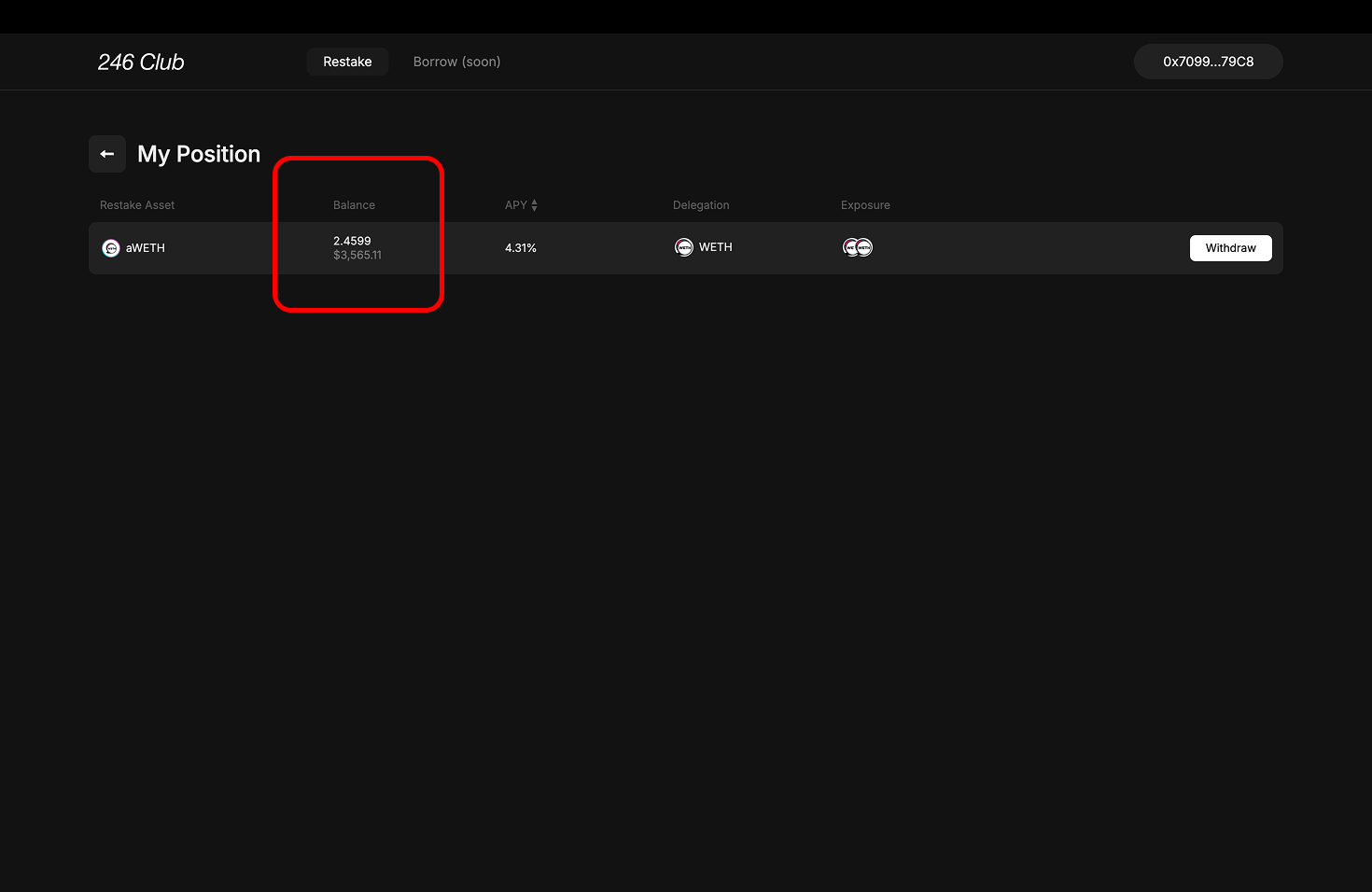 Here, you’ll see:
* The collateral and borrow assets in each position
* Your current **Net APY**
* Your real-time **LTV**
> The LTV bar changes color based on risk:
>
> * Green: Safe
> * Orange: Moderate risk
> * Red: Close to liquidation
[Learn more about managing loan positions](docs/cross-protocol-arbitrage/managing-arbitrage-position)
## Managing My Position
You can manage your position through four actions:
* **Supply**: Add more collateral
* **Withdraw**: Remove part of your collateral
* **Borrow**: Borrow additional funds
* **Repay**: Reduce your borrowed amount
Each opens a corresponding modal.
#### Supply ( Collateral ) Modal
Here, you’ll see:
* The collateral and borrow assets in each position
* Your current **Net APY**
* Your real-time **LTV**
> The LTV bar changes color based on risk:
>
> * Green: Safe
> * Orange: Moderate risk
> * Red: Close to liquidation
[Learn more about managing loan positions](docs/cross-protocol-arbitrage/managing-arbitrage-position)
## Managing My Position
You can manage your position through four actions:
* **Supply**: Add more collateral
* **Withdraw**: Remove part of your collateral
* **Borrow**: Borrow additional funds
* **Repay**: Reduce your borrowed amount
Each opens a corresponding modal.
#### Supply ( Collateral ) Modal
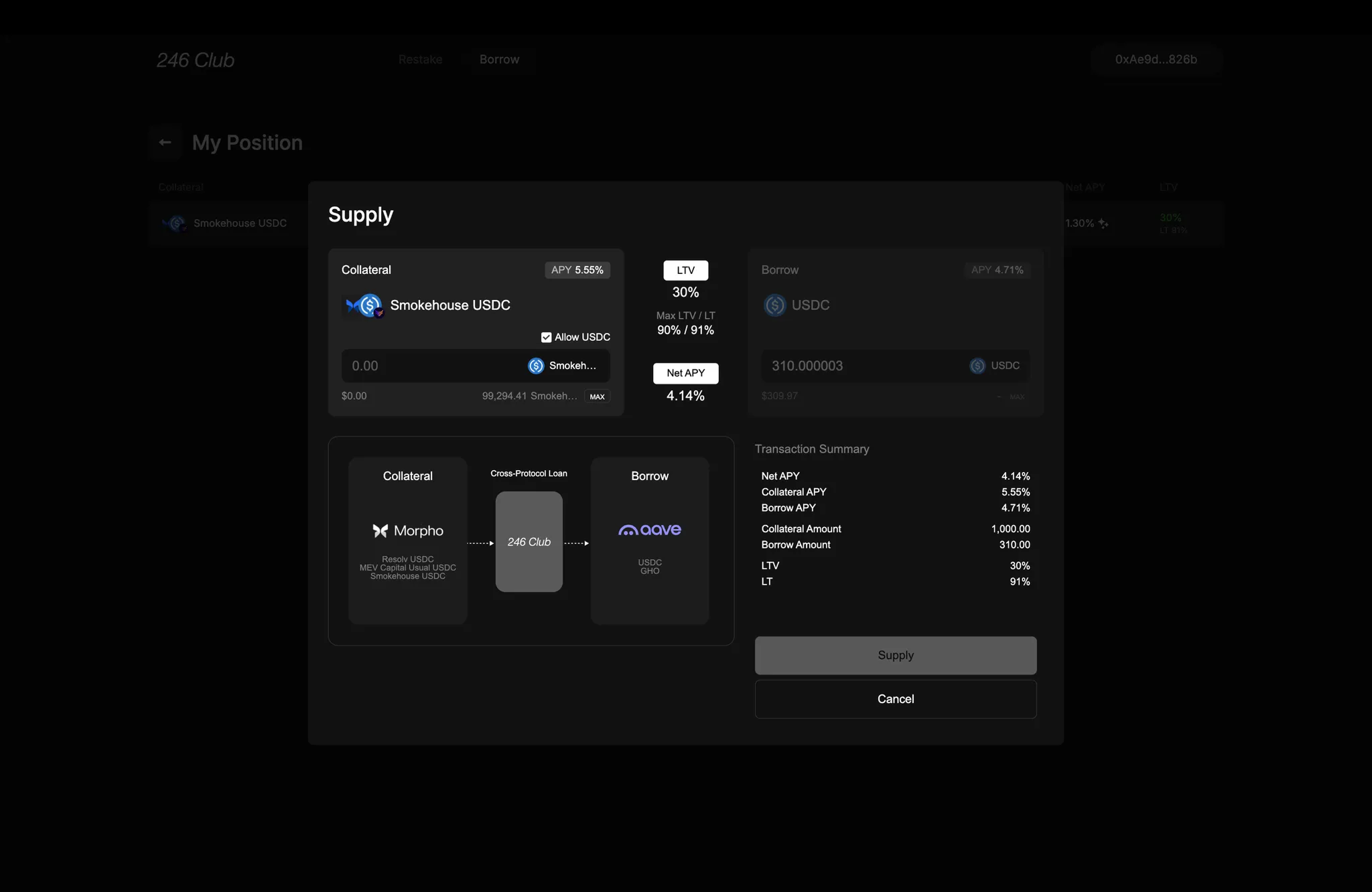 Add more to your collateral. Max depositable amount includes both in your wallet :
* Existing vault position
* Underlying asset (if enabled)
Entering an amount shows updated:
* Collateral total
* LTV
* Net APY
#### Withdraw ( Collateral ) Modal
Add more to your collateral. Max depositable amount includes both in your wallet :
* Existing vault position
* Underlying asset (if enabled)
Entering an amount shows updated:
* Collateral total
* LTV
* Net APY
#### Withdraw ( Collateral ) Modal
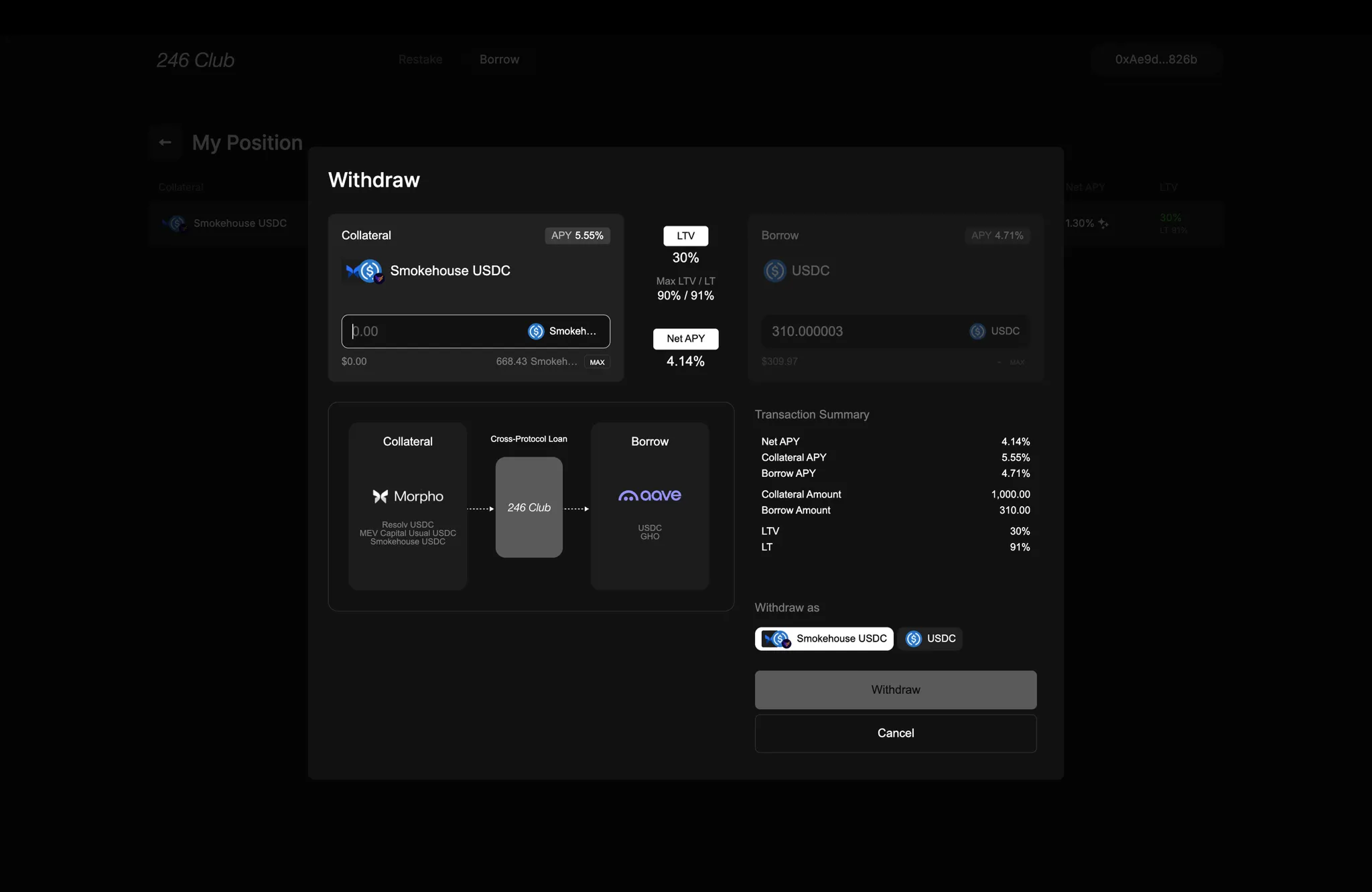 The **Withdraw** modal allows you to withdraw part of your collateral from an existing loan position.
The **Max** button shows the maximum amount you can withdraw *without exceeding the Max LTV*. This is dynamically calculated based on your current borrow amount and the remaining headroom before reaching the liquidation threshold.
As you input the amount, the **Summary** section updates:
* New **Collateral Value**
* New **LTV**
* Updated **Net APY**
#### **Borrow Modal**
The **Withdraw** modal allows you to withdraw part of your collateral from an existing loan position.
The **Max** button shows the maximum amount you can withdraw *without exceeding the Max LTV*. This is dynamically calculated based on your current borrow amount and the remaining headroom before reaching the liquidation threshold.
As you input the amount, the **Summary** section updates:
* New **Collateral Value**
* New **LTV**
* Updated **Net APY**
#### **Borrow Modal**
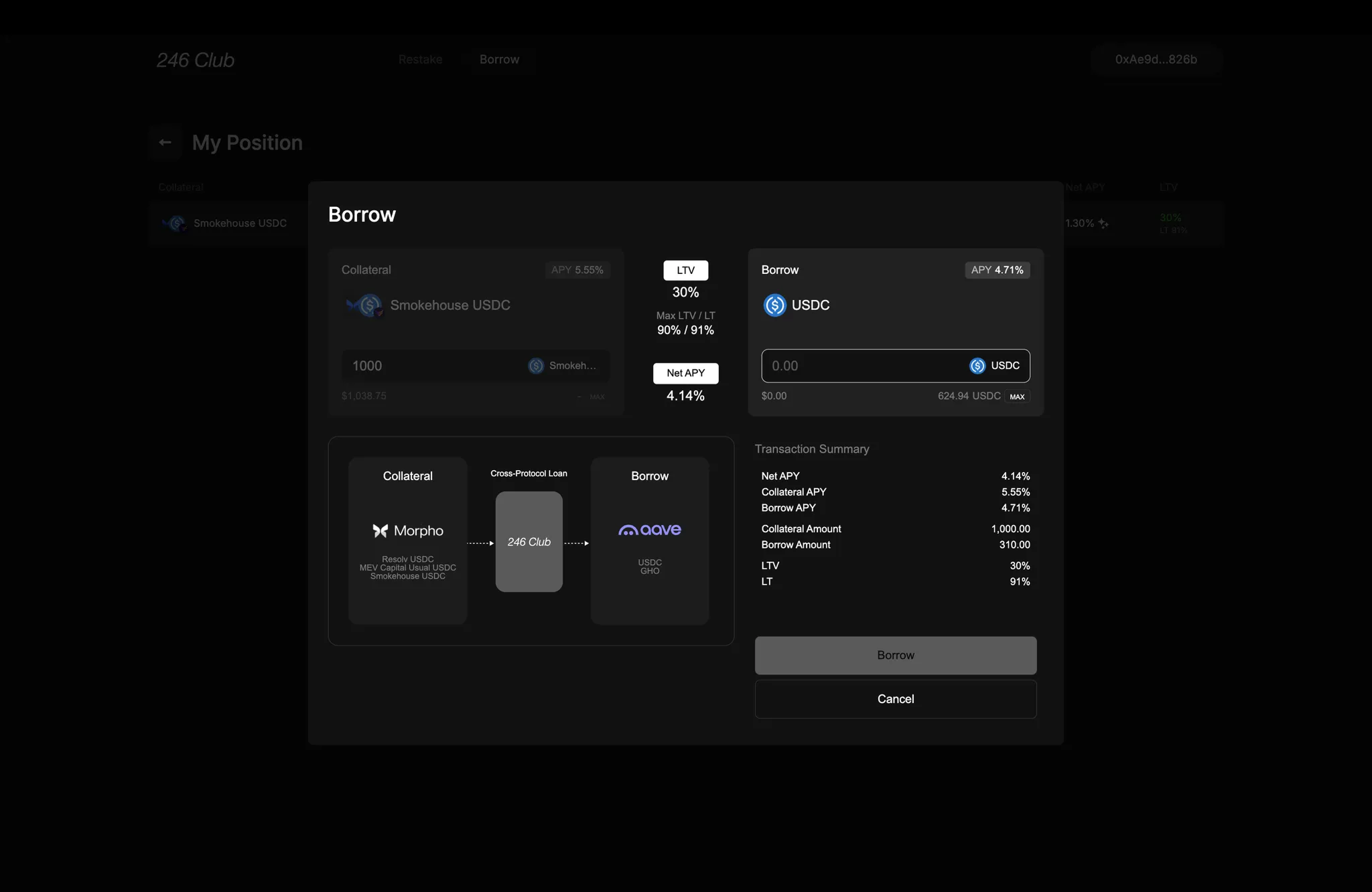 The **Borrow** modal lets you increase the borrowed amount against your existing collateral position.
* The input field allows you to specify how much more of the borrow asset you’d like to take out.
* The **Max** button auto-fills the maximum additional amount you can borrow, calculated as:
**(Collateral Value × Max LTV) – Current Borrow Amount**
The UI ensures that the total LTV after borrowing doesn’t exceed the pair’s maximum allowed LTV.
As you adjust the borrow amount, the **Summary** updates :
* New **Borrowed Amount**
* New **LTV**
* Updated **Net APY**
#### **Repay Modal**
The **Borrow** modal lets you increase the borrowed amount against your existing collateral position.
* The input field allows you to specify how much more of the borrow asset you’d like to take out.
* The **Max** button auto-fills the maximum additional amount you can borrow, calculated as:
**(Collateral Value × Max LTV) – Current Borrow Amount**
The UI ensures that the total LTV after borrowing doesn’t exceed the pair’s maximum allowed LTV.
As you adjust the borrow amount, the **Summary** updates :
* New **Borrowed Amount**
* New **LTV**
* Updated **Net APY**
#### **Repay Modal**
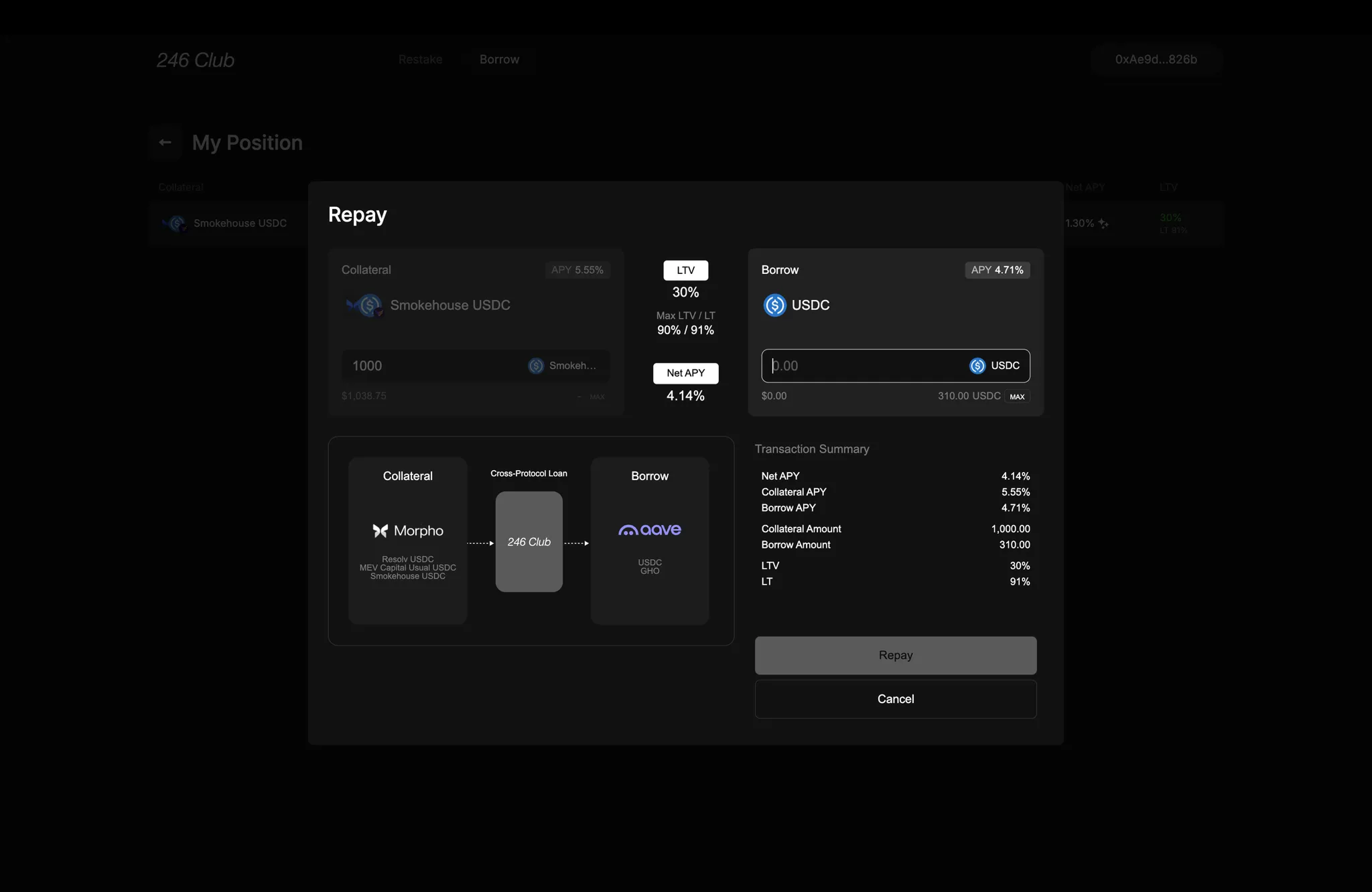 The **Repay** modal allows you to pay down your outstanding debt.
* You can input how much you’d like to repay.
* The **Max** button shows the lesser of:
* The full borrowed amount of your position
* The amount of borrow asset (e.g., USDC) available in your wallet
You can repay partially or in full, and doing so lowers your LTV, improving the safety of your position.
As you type in the repay amount, the **Summary** recalculates:
* Remaining **Borrow Amount**
* New **LTV**
* Adjusted **Net APY**
#### **Repay Modal - Flash Repay**
The **Repay** modal allows you to pay down your outstanding debt.
* You can input how much you’d like to repay.
* The **Max** button shows the lesser of:
* The full borrowed amount of your position
* The amount of borrow asset (e.g., USDC) available in your wallet
You can repay partially or in full, and doing so lowers your LTV, improving the safety of your position.
As you type in the repay amount, the **Summary** recalculates:
* Remaining **Borrow Amount**
* New **LTV**
* Adjusted **Net APY**
#### **Repay Modal - Flash Repay**
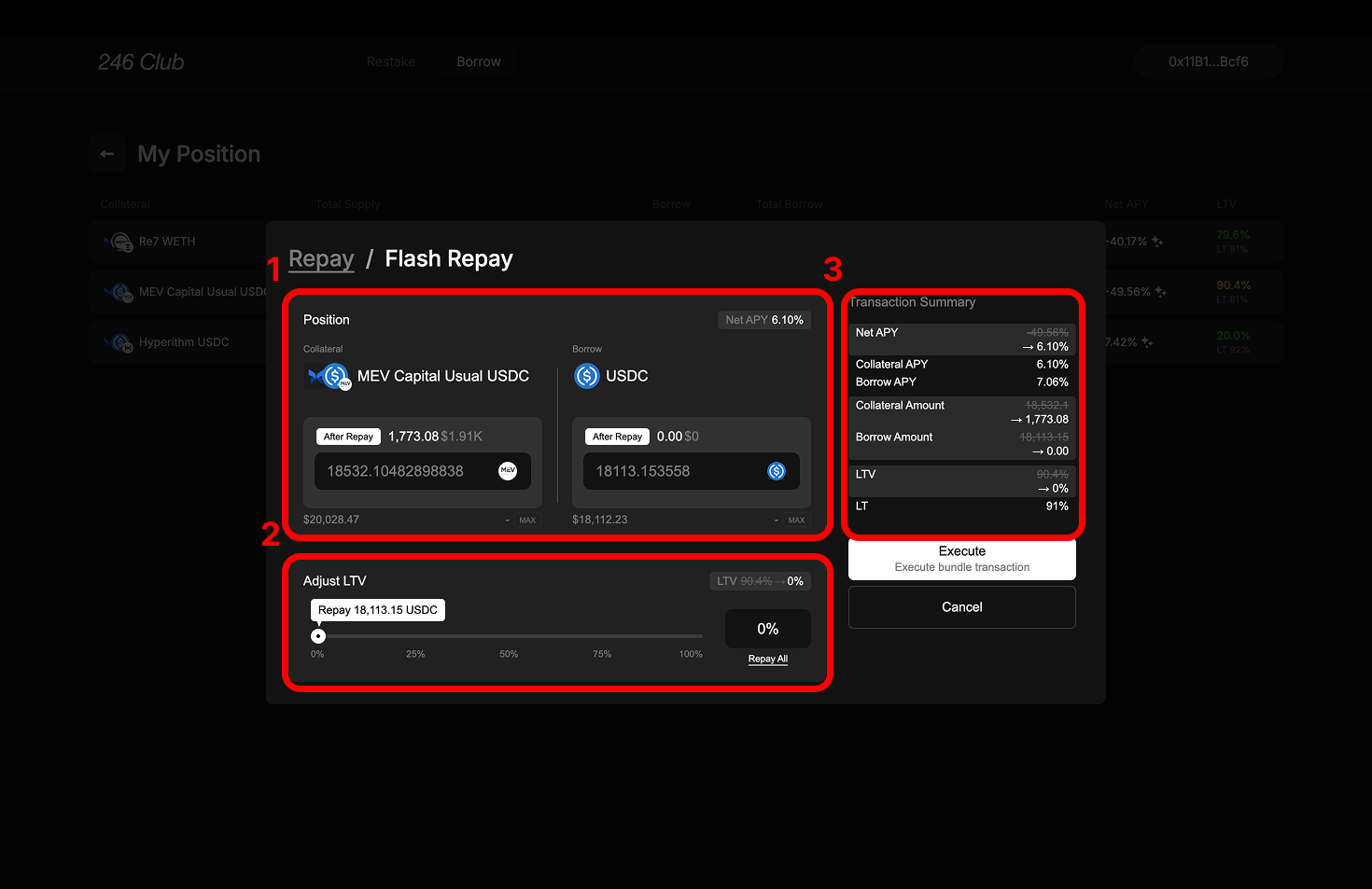 Flash-Repay mode automates the repayment process using your collateral — allowing you to pay down your outstanding debt without needing funds in your wallet.
Flash-Repay is useful if you want to improve your position health or fully close your position without external capital.
The modal has three sections: **Position**, **Adjust LTV**, and **Summary**.
**1. Position Box**
* Shows the selected **collateral** and **borrow asset pair**.
* Before any interaction, it displays the current **Collateral Supplied** and **Amount Borrowed**, along with the dollar value of each.
* After setting a target LTV using the Adjust LTV Box, the "After Repay" values are displayed, showing updated Collateral and Borrow amounts.
> In Flash-Repay mode, you don't manually input an amount.
>
> You simply set a target LTV, and the system automatically calculates the required collateral withdrawal and debt repayment.
**2. Adjust LTV Box**
* Set your desired **Target LTV** using the slider — can only be set lower than your current LTV.
* Clicking **Max** sets your Target LTV to 0%, fully repaying your debt.
**3. Summary Section**
* Real-time updates reflect changes based on your selected Target LTV:
* **Net APY**
* Total **Collateral Supplied** (after accounting for the amount used to repay)
* Total **Amount Borrowed**
* Current **LTV** after Flash-Repay
Flash-Repay mode automates the repayment process using your collateral — allowing you to pay down your outstanding debt without needing funds in your wallet.
Flash-Repay is useful if you want to improve your position health or fully close your position without external capital.
The modal has three sections: **Position**, **Adjust LTV**, and **Summary**.
**1. Position Box**
* Shows the selected **collateral** and **borrow asset pair**.
* Before any interaction, it displays the current **Collateral Supplied** and **Amount Borrowed**, along with the dollar value of each.
* After setting a target LTV using the Adjust LTV Box, the "After Repay" values are displayed, showing updated Collateral and Borrow amounts.
> In Flash-Repay mode, you don't manually input an amount.
>
> You simply set a target LTV, and the system automatically calculates the required collateral withdrawal and debt repayment.
**2. Adjust LTV Box**
* Set your desired **Target LTV** using the slider — can only be set lower than your current LTV.
* Clicking **Max** sets your Target LTV to 0%, fully repaying your debt.
**3. Summary Section**
* Real-time updates reflect changes based on your selected Target LTV:
* **Net APY**
* Total **Collateral Supplied** (after accounting for the amount used to repay)
* Total **Amount Borrowed**
* Current **LTV** after Flash-Repay